Amazon Web Service 端算平台攻略 【3】:免架WordPress部落格的主
本文目的
如果你需要一能自己管理控制的部落格平台,基本上需要的是租用一台伺服器加上安部落格。本文要告你,如何用Amazon的端平台AWS提供的一年免Free Tier,安使用於你自己的Wordpress部落格平台!
注意如果要行本文攻略,定你已能用ssh上一AWS的linux micro instance。最好的方法是前篇供略:
免玩端算,Amazon Web Service 端算平台攻略 【1】Amazon Web Service 端算平台攻略 【2】如果全部照著先前的攻略作,本文使用的相指令步可百分之百不用修改。若了略不同的步,者需自己的情,指令或步做些微的整。
安步定相境
1. 修改防火安全定
登入AWS管理介面,查看目前Instance使用的安全案是哪名字,以本例是quick-start-1,把名字下:
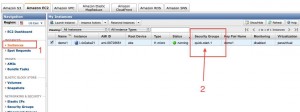
?
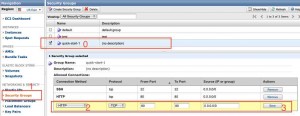
左Security Groups,在示中0的地方滑鼠一下,在2的地方下拉HTTP,到右3的地方按下SAVE。
2. 新增Instance的Elastic IP:
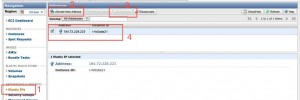
按下左的Elastic IPs,出面如下。然後2的Allocate New Address,後就拿到一新的IP。接下必按下3的Associate新IP在你的Instance上,就在4的位置看到你的IP以及你的InstanceID都出了。如果只有IP,有InstanceID,Amazon收取每小0.01美金的用,小心。
3. 定domain name
在你的domain name的管理伺服器上把得到的IP定到你的域名上。才能在器用http://test.com看到你的。否都得用IP你的站。部份的教不在本文容,自行理。
4. 修改本地的SSH定。
在你用AWS的linux或mac上面,~/.ssh/authorized_hosts案(mac上面~i ~/.ssh/known_hosts ), ec2-xx-oo-ww-82.compute-1.amazonaws.com那行的授料掉,存。由於你在Amazon上的linux生了新的IP,若你用原的方式接,由於安全料不同了,系告你安全,不你接,示息如下:
# ssh -i demo1.pem ec2-user@ec2-xx-oo-ww-82.compute-1.amazonaws.com
@@@@@@@@@@@@@@@@@@@@@@@@@@@@@@@@@@@@@
@??? WARNING: REMOTE HOST IDENTIFICATION HAS CHANGED!???? @
@@@@@@@@@@@@@@@@@@@@@@@@@@@@@@@@@@@@@
IT IS POSSIBLE THAT SOMEONE IS DOING SOMETHING NASTY!
Someone could be eavesdropping on you right now (man-in-the-middle attack)!
It is also possible that the RSA host key has just been changed.
The fingerprint for the RSA key sent by the remote host is
8a:df:1f:01:79:61:d4:b1:fe:1a:19:6d:aa:xx:oo:xx.
Please contact your system administrator.
Add correct host key in /Users/xxxxxxx/.ssh/known_hosts to get rid of this message.
Offending key in /Users/xxxxx/.ssh/known_hosts:3
RSA host key for ec2-xx-oo-xx-82.compute-1.amazonaws.com has changed and you have requested strict checking.
Host key verification failed.
修改authorized_hosts料後,新的接方式是:
ssh -i demo1.pem ec2-user@100.100.100.100??????? //100.100.100.100的部份成你的IP
以上做完,相境定告一段落。你能用IP上你的Amazon AWS Instance。如下:
$ ssh -i demo1.pem ec2-user@184.72.111.111
Last login: Sun Nov? 7 03:48:12 2010 from 118-111-111-90.dynamic.hinet.net__|? __|_? )? Amazon Linux AMI
_|? (???? /???? Beta
___|\___|___|See /etc/image-release-notes for latest release notes. :-)
[ec2-user@ip-10-122-111-111 ~]$
如果一切都利,我就往下一步走吧!
安Apache, phpMySQL,料,下wordpress
接下是一系列的指令,照做:
1. 更新系
# sudo yum update
2. 安必要的apache, phpmysql,服。
# sudo yum install apache mysql php php-mysql mysql-server
# sudo service httpd start
# sudo service mysqld start
3. 建立wordpress用的MySQL料
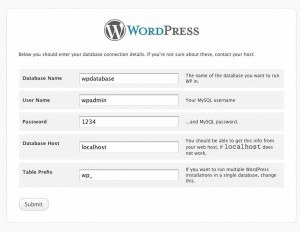
假定你要建立的料名叫做 wpdatabase,管理使用者叫做wpadmin,密是1234:
# sudo mysql
Welcome to the MySQL monitor.? Commands end with ; or \g.
Your MySQL connection id is 3
Server version: 5.1.47 Source distributionCopyright (c) 2000, 2010, Oracle and/or its affiliates. All rights reserved.
This software comes with ABSOLUTELY NO WARRANTY. This is free software,
and you are welcome to modify and redistribute it under the GPL v2 licenseType ‘help;’ or ‘\h’ for help. Type ‘\c’ to clear the current input statement.
mysql> create database wpdatabase;
Query OK, 1 row affected (0.00 sec)
mysql> create user wpadmin;
Query OK, 0 rows affected (0.00 sec)
mysql> set password for wpadmin = password(“1234″);
Query OK, 0 rows affected (0.00 sec)mysql> grant all on wpdatabase.* to wpadmin@localhost identified by ’1234′;
Query OK, 0 rows affected (0.00 sec)
4. 安wordpress案
定wordpress# cd /var/www
# sudo wget http://wordpress.org/latest.tar.gz
# sudo tar xvzf latest.tar.gz
# sudo mv wordpress/* html/
# sudo chown -R apache.apache html
到此止,如果有出什差,接下就很了。
1. 打器,入你的Elastic IP或是你的domain name,例如 http://www.inside.com.tw。看到的定要做,在料定上入的容:
?
2. 下一步,入部落格,管理者,然後就…..完成了!
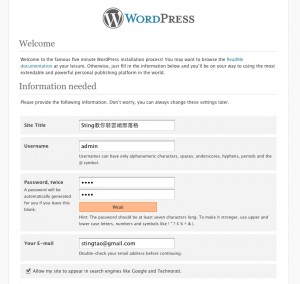
?
在,你已有了一自己的部落格,跑在Amazon EC2端算系上!接下你要改面定,然後配合你心中定的主,始第一篇文章吧!
如果做成功了,也迎留言留下你部落格的址,好其他友能去看看。於Wordpress怎定或安,可以去看相籍,不在本文述。若您需要助,可以信洽。
?
部落格是目前的行工具管道。用名部落格、Pixnet部落格或Blogger等平台,功能充上往往有些限制。若自建境架部落格系又常受限於相知技,在突性的大流量下也不容易理。使用端系AWS的好是安全,充性,有一自主管理的部落格系更是只有爽字可以形容。
完本篇,快手跟上度,架一自己的部落格吧!