Swing界面布局之代码手写一, 计算器layout实现
很多人认为Swing的布局设计很难, 其实并不然
一方面是教科书的误导
另一方面是Swing的布局思想比较先进, 理解了, 你就会喜欢上它
这篇贴子, 先讲简单的, 也是许多人学习swing时最想做的事, 我希望像VS一样设计Layout
要在Swing里实现这个, 其实很简单, 只须要轻轻地告诉swing, 我的layout为null即可
可惜, 读了好多本swing的书, 都没有比较仔细的例子, 只有简单地说一下(一小段文字)
下面是用swing做的一个计算器demo, 只有layout, 没有功能实现 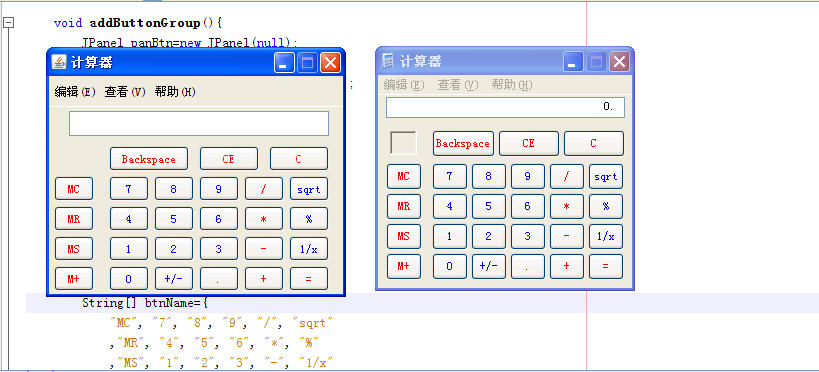
既然是手写代码, 当然是简洁喽, 不像IDE生成的一大堆不明所以的代码


- public CalculatorView() {frame=new JFrame("计算器");frame.setDefaultCloseOperation(JFrame.EXIT_ON_CLOSE);//退出窗口时关闭线程frame.setBounds(200, 200, 300, 250);//初始位置和大小frame.setResizable(false);//不能放大container=frame.getContentPane();//指定containercontainer.setLayout(null);//像VS一样的布局,简单实现setLookAndFeel();//XP style的layoutaddComponent();//添加控件frame.setVisible(true);//最后把窗口显示出来}
添加控件: 菜单, 结果文本框, 按钮
- void addComponent(){addMenu();//添加菜单栏addResultText();//添加结果显示文本框addButtonGroup();//添加按钮container.setBackground(new Color(236,233,216));//调整面板颜色一致JSeparator sep1=new JSeparator();//菜单栏下面的分隔线sep1.setBounds(0, 30, 300, 1);sep1.setForeground(Color.WHITE);container.add(sep1);}
菜单和结果文本框比较简单, 不贴上来, 下面的按钮的
- void addButtonGroup(){JPanel panBtn=new JPanel(null);//所有的按钮都加在这个panel里panBtn.setBounds(0, 65, 300, 200);JButton btnBS=new JButton("Backspace");//backspace,CE,C三个按钮单独添加btnBS.setBounds(60, 5, 80, 25);panBtn.add(btnBS);//new BtnUI()btnBS.setUI(new BtnUI());//由于swing的文字渲染要求按钮JButton btnCE=new JButton("CE");//要很多的横向空间, 所以只好btnCE.setBounds(150, 5, 60, 25);//自己override文字渲染functionpanBtn.add(btnCE);JButton btnC=new JButton("C");btnC.setBounds(220, 5, 60, 25);panBtn.add(btnC);String[] btnName={"MC", "7", "8", "9", "/", "sqrt","MR", "4", "5", "6", "*", "%","MS", "1", "2", "3", "-", "1/x","M+", "0", "+/-", ".", "+", "="};JButton[] btns=new JButton[24];int i=0;int oriX=15;int oriY=35;int btnW=40;int btnH=25;for(JButton btn : btns){btn=new JButton();btns[i]=btn;int x=(i%6)*(btnW+5)+oriX;int y=(i/6)*(btnH+5)+oriY;x=(i%6==0)?x-10:x;//add sep sapce morebtn.setText(btnName[i++]);btn.setUI(new BtnUI());btn.setForeground(Color.blue);btn.setBounds(x, y, btnW, btnH);panBtn.add(btn);}//set some button color to redint red[]={0, 6, 12, 18, 4, 10, 16, 22, 23};for(int n : red){btns[n].setForeground(Color.RED);}btnBS.setForeground(Color.RED);btnCE.setForeground(Color.RED);btnC.setForeground(Color.RED);container.add(panBtn);//panel加进container容器里}
BtnUI(),
由于swing的文字渲染要求按钮, 要很多的横向空间, 所以只好自己override文字渲染function
- class BtnUI extends WindowsButtonUI {@Overrideprotected void paintText(Graphics g, AbstractButton b, Rectangle textRect, String text) {textRect.width=40;text=b.getText();//FontMetrics fm=SwingUtilities2.getFontMetrics(b, g);//source code methodFontMetrics fm=Toolkit.getDefaultToolkit().getFontMetrics(b.getFont());int w=fm.stringWidth(text);int x=(b.getWidth()-w)/2;int y=17;g.setColor(b.getForeground());//SwingUtilities2.drawString(b, g, text, x, y);//source code methodg.drawString(text, x, y);}}
以上, 只有178行, 够简洁吧, 其实主要不是在乎行数的多少, 而是受不了IDE生成的一大堆代码
而且, 自己写, 结构能控制得更好