Android11_Radio和CheckBox
一、RadioGroup和RadioButton的使用方法
RadioGroup和RadioButton代表的是Android中单选按钮的一种控件。对于单选按钮来说,每次只能选一个,如果有多组需要单选的信息,如:男、女,匿名发表、实名发表等,此时则需要组来区分哪几个单选按钮时一组的。
main.xml
?
<RadioGroup android:id="@+id/radioGroup" android:layout_width="wrap_content" android:layout_height="wrap_content" android:orientation="vertical" > <RadioButton android:id="@+id/male" android:layout_width="wrap_content" android:layout_height="wrap_content" android:text="@string/male" /> <RadioButton android:id="@+id/female" android:layout_width="wrap_content" android:layout_height="wrap_content" android:text="@string/female" /></RadioGroup>
?
?CtrlActivity.java
?
radioGroup = (RadioGroup)findViewById(R.id.radioGroup);male = (RadioButton)findViewById(R.id.male);female = (RadioButton)findViewById(R.id.female);//给radioGroup添加监听器radioGroup.setOnCheckedChangeListener(new RadioGroup.OnCheckedChangeListener() {public void onCheckedChanged(RadioGroup group, int checkedId) {if(female.getId() == checkedId){System.out.println("famale");//使用toast提示信息Toast.makeText(CtrlActivity.this, "您选择了女!", Toast.LENGTH_SHORT).show();}else if(male.getId() == checkedId){System.out.println("male");Toast.makeText(CtrlActivity.this, "您选择了男!", Toast.LENGTH_SHORT).show();}}});?二、CheckBox的使用方法
main.xml
?
<CheckBox android:id="@+id/football" android:layout_width="wrap_content" android:layout_height="wrap_content" android:text="@string/football"/>
?CtrlActivity.java
?
football = (CheckBox)findViewById(R.id.football);//为多选按钮添加监听器football.setOnCheckedChangeListener(new CompoundButton.OnCheckedChangeListener() {public void onCheckedChanged(CompoundButton buttonView, boolean isChecked) {if(isChecked){System.out.println("football is checked");Toast.makeText(CtrlActivity.this, "您选择了足球!", Toast.LENGTH_SHORT).show();}else{System.out.println("football is unchecked");Toast.makeText(CtrlActivity.this, "您取消了足球选择!", Toast.LENGTH_SHORT).show();}}});?三、Toast的基本用法
用于设置提示信息,用起来很方便。只需要一行代码。
?
Toast.makeText(CtrlActivity.this, "选择成功!", Toast.LENGTH_SHORT).show();
?其中makeText方法有三个参数,分别为当前Activity对象,输出数据以及Toast的长度。
?
四、完整代码
main.xml
?
<?xml version="1.0" encoding="utf-8"?><LinearLayout xmlns:android="http://schemas.android.com/apk/res/android" android:orientation="vertical" android:layout_width="fill_parent" android:layout_height="fill_parent" ><TextView android:layout_width="fill_parent" android:layout_height="wrap_content" android:text="@string/app_name" /> <TextView android:layout_width="fill_parent" android:layout_height="wrap_content" android:text="@string/radioText" /> <RadioGroup android:id="@+id/radioGroup" android:layout_width="wrap_content" android:layout_height="wrap_content" android:orientation="vertical" > <RadioButton android:id="@+id/male" android:layout_width="wrap_content" android:layout_height="wrap_content" android:text="@string/male" /> <RadioButton android:id="@+id/female" android:layout_width="wrap_content" android:layout_height="wrap_content" android:text="@string/female" /> </RadioGroup> <CheckBox android:id="@+id/football" android:layout_width="wrap_content" android:layout_height="wrap_content" android:text="@string/football" /> <CheckBox android:id="@+id/basketball" android:layout_width="wrap_content" android:layout_height="wrap_content" android:text="@string/basketball" /> <CheckBox android:id="@+id/volleyball" android:layout_width="wrap_content" android:layout_height="wrap_content" android:text="@string/volleyball" /> </LinearLayout>
?strings.xml
?
<?xml version="1.0" encoding="utf-8"?><resources> <string name="hello">Hello World, CtrlActivity!</string> <string name="app_name">测试选择控件</string> <string name="radioText">下面是单选框控件</string> <string name="male">男</string> <string name="female">女</string> <string name="football">足球</string> <string name="basketball">篮球</string> <string name="volleyball">排球</string></resources>
?CtrlActivity.java
?
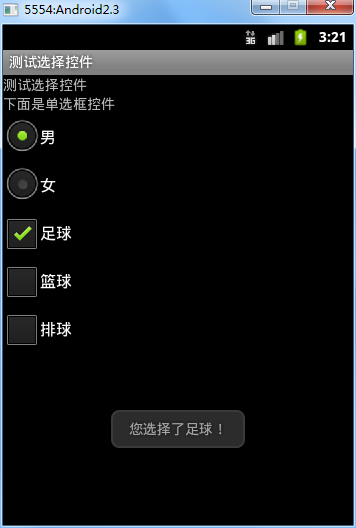
package com.android.activity;import android.app.Activity;import android.os.Bundle;import android.widget.CheckBox;import android.widget.CompoundButton;import android.widget.RadioButton;import android.widget.RadioGroup;import android.widget.Toast;public class CtrlActivity extends Activity {private RadioGroup radioGroup = null;private RadioButton male = null;private RadioButton female = null;private CheckBox football = null;private CheckBox basketball = null;private CheckBox volleyball = null; @Override public void onCreate(Bundle savedInstanceState) { super.onCreate(savedInstanceState); setContentView(R.layout.main); radioGroup = (RadioGroup)findViewById(R.id.radioGroup); male = (RadioButton)findViewById(R.id.male); female = (RadioButton)findViewById(R.id.female); football = (CheckBox)findViewById(R.id.football); basketball = (CheckBox)findViewById(R.id.basketball); volleyball = (CheckBox)findViewById(R.id.volleyball); //为RadioGroup设置监听器,需要注意的是,这里的监听器和Button控件的监听器有所不同 radioGroup.setOnCheckedChangeListener(new RadioGroup.OnCheckedChangeListener() {public void onCheckedChanged(RadioGroup group, int checkedId) {if(female.getId() == checkedId){System.out.println("famale");//使用toast提示信息Toast.makeText(CtrlActivity.this, "您选择了女!", Toast.LENGTH_SHORT).show();}else if(male.getId() == checkedId){System.out.println("male");Toast.makeText(CtrlActivity.this, "您选择了男!", Toast.LENGTH_SHORT).show();}}}); //为多选按钮添加监听器 football.setOnCheckedChangeListener(new CompoundButton.OnCheckedChangeListener() {public void onCheckedChanged(CompoundButton buttonView, boolean isChecked) {if(isChecked){System.out.println("football is checked");Toast.makeText(CtrlActivity.this, "您选择了足球!", Toast.LENGTH_SHORT).show();}else{System.out.println("football is unchecked");Toast.makeText(CtrlActivity.this, "取消足球选择!", Toast.LENGTH_SHORT).show();}}}); basketball.setOnCheckedChangeListener(new CompoundButton.OnCheckedChangeListener() {public void onCheckedChanged(CompoundButton buttonView, boolean isChecked) {if(isChecked){System.out.println("basketball is checked");Toast.makeText(CtrlActivity.this, "您选择了篮球!", Toast.LENGTH_SHORT).show();}else{System.out.println("basketball is unchecked");Toast.makeText(CtrlActivity.this, "取消篮球选择!", Toast.LENGTH_SHORT).show();}}}); volleyball.setOnCheckedChangeListener(new CompoundButton.OnCheckedChangeListener() {public void onCheckedChanged(CompoundButton buttonView, boolean isChecked) {if(isChecked){System.out.println("volleyball is checked");Toast.makeText(CtrlActivity.this, "您选择了排球!", Toast.LENGTH_SHORT).show();}else{System.out.println("volleyball is unchecked");Toast.makeText(CtrlActivity.this, "取消排球选择!", Toast.LENGTH_SHORT).show();}}}); }}?运行结果:
? ? ?