请问如何修改为Console程序
using AndrewUtil.Controls;
using System;
using System.Windows.Forms;
namespace WindowsFormsApplication1
{
public partial class Form1 : Form
{
public Form1()
{
InitializeComponent();
}
private void button1_Click(object sender, EventArgs e)
{
//设置需要翻译的类型
if (comboBox1.SelectedIndex == 0)
translate1.TranslateType = Translate.TranslateTypeEnum.EnglishToChinese;
else
translate1.TranslateType = Translate.TranslateTypeEnum.ChineseToEnglish;
translate1.TranslateText = textBox1.Text; //设定需要翻译的文本
translate1.StartAsync(); //开始异步翻译
textBox2.Text = "请稍等,正在网络翻译中……";
}
private void translate1_TranslateCompleteEvent(object sender, Translate.TranslateCompleteArgs e)
{
//当翻译完成时,并且没有错误,则将翻译内容显示到界面上
if (e.Error == null)
{
textBox2.Text = "";
textBox2.Text = e.TranslateResult;
}
else
MessageBox.Show("出错啦!错误信息:" + e.Error);
}
}
}
如上代码:AndrewUtil是个网络翻译组件,网络上介绍的是用WinForm编程,突然想要用控制台输出,但是不知道怎么做,下面做了几行代码做不下去了。
using AndrewUtil.Controls;
using System;
namespace ConsoleTest
{
public class Program
{
public static void Main(string[] args)
{
Translate tran = new Translate();
tran.TranslateType = Translate.TranslateTypeEnum.EnglishToChinese;
string tmp = "Your English name 21A, Bristol Road, Hertford Mansion, Singapore 219847 Phone:";
tran.TranslateText = tmp; //设定需要翻译的文本
tran.Start(); //开始翻译
Console.WriteLine("按任意键结束...");
Console.ReadKey();
}
}
}
一是不知道如何获取翻译完成后的文本,而是老是出错!
出错信息如下: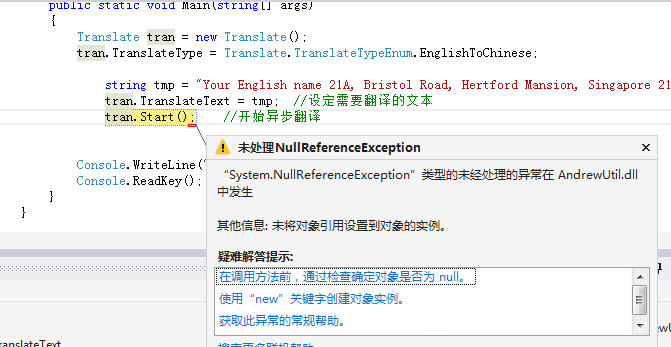
分越用越少了,本来就没技术,没办法获得分数呀
[解决办法]
试试这样:
using AndrewUtil.Controls;
using System;
namespace ConsoleTest
{
public class Program
{
public static void Main(string[] args)
{
Translate tran = new Translate();
tran.TranslateType = Translate.TranslateTypeEnum.EnglishToChinese;
string tmp = "Your English name 21A, Bristol Road, Hertford Mansion, Singapore 219847 Phone:";
tran.TranslateText = tmp; //设定需要翻译的文本
tran.StartAsync(); //开始异步翻译
tran.TranslateCompleteEvent += new Translate.TranslateCompleteHander(startTranslate);
Console.WriteLine("按任意键结束...");
Console.ReadKey();
}
private static void startTranslate(object sender, Translate.TranslateCompleteArgs e)
{
Console.WriteLine(e.TranslateResult);
}
}
}
[解决办法]
变态一点的做法:(
还是使用Winform程序,但是可以达到命令行运行的效果。
1、Winform程序改造下main函数,可以接收输入的参数类似如下,这样可以传入入参:
using System;
using System.Collections.Generic;
using System.Windows.Forms;
namespace AndrewDemo
{
static class Program
{
/// <summary>
/// 应用程序的主入口点。
/// </summary>
[STAThread]
static void Main(string[] args)
{
Application.EnableVisualStyles();
Application.SetCompatibleTextRenderingDefault(false);
if (args.Length == 1)
{
Application.Run(new Form1(args[0]));
}
else if (args.Length == 0)
{
Application.Run(new Form1());
}
else
{
return;
}
}
}
}
2、重写Form构造函数,可处理入参,并且在Form当中While探测异步翻译的执行结果。为了不显示窗体,在Form的构造函数最后执行System.Environment.Exit(0);来退出程序
using System;
using System.Collections.Generic;
using System.ComponentModel;
using System.Data;
using System.Drawing;
using System.Text;
using System.Windows.Forms;
using AndrewUtil.Controls;
using System.Threading;
namespace AndrewDemo
{
public partial class Form1 : Form
{
private Boolean isTranslateFinished = false;
private string TranslateResult = "";
public Form1()
{
InitializeComponent();
System.Environment.Exit(0);
}
public Form1(string TranslateString)
{
InitializeComponent();
translate1.TranslateType = Translate.TranslateTypeEnum.EnglishToChinese;
translate1.TranslateText = TranslateString;
translate1.StartAsync();
while (!isTranslateFinished)
{
Thread.Sleep(1000);
}
Console.WriteLine(TranslateResult);
System.Environment.Exit(0);
}
//异步翻译完成事件
private void translate1_TranslateCompleteEvent(object sender, AndrewUtil.Controls.Translate.TranslateCompleteArgs e)
{
//当翻译完成时,并且没有错误,则将翻译内容显示到界面上
if (e.Error == null)
{
TranslateResult = e.TranslateResult;
isTranslateFinished = true;
}
else
MessageBox.Show("出错啦!错误信息:" + e.Error);
}
}
}
3、修改项目的输出类型为“控制台应用程序”。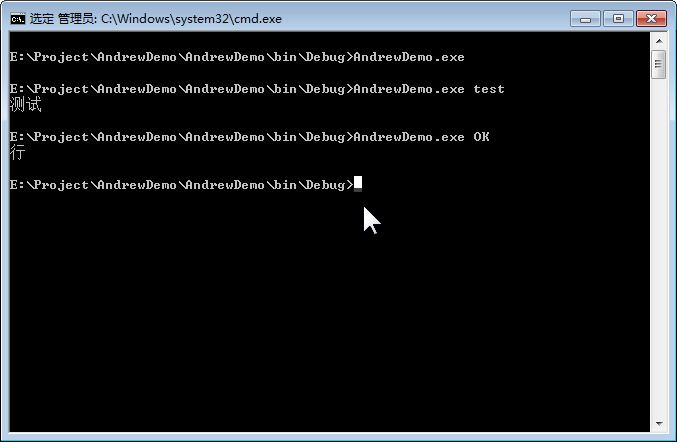
[解决办法]
在form类中定义
[DllImport("kernel32.dll")]
public static extern bool AllocConsole();
窗体加载时调用AllocConsole();
把 textBox2.Text 换成 Console.WriteLine(e.TranslateResult);等